
Download Daily Expenses – free finance tracker for Mac
Overview of Daily Expenses
Daily Expenses is a full‑featured finance and budgeting tool designed exclusively for macOS. Developed by Raj Kumar Shaw, the application targets individuals and small businesses that need a reliable way to record, categorize, and analyze everyday spending. The current version, 3.3.8, was refreshed on and runs smoothly on macOS X as well as earlier releases.
Its clean, English‑language interface makes it easy for users of any skill level to start tracking expenses within minutes. Whether you are managing personal bills, keeping an eye on project costs, or preparing monthly financial reports, Daily Expenses offers a straightforward, secure environment that eliminates the need for spreadsheets or expensive cloud‑based services. Because the program is a one‑time purchase rather than a subscription, you can download, install, and use it for as long as you need without worrying about recurring fees.
The application’s lightweight design respects system resources while still delivering powerful reporting capabilities, such as custom date ranges, category summaries, and export options for CSV or PDF. In short, Daily Expenses blends simplicity with professional‑grade functionality, making it an ideal choice for Mac users who want a dedicated finance app without the overhead of large enterprise suites.
Key Features and macOS Compatibility
What Daily Expenses Can Do for You
- Quick entry of income and expense items with customizable fields.
- Automatic categorization based on user‑defined rules and keywords.
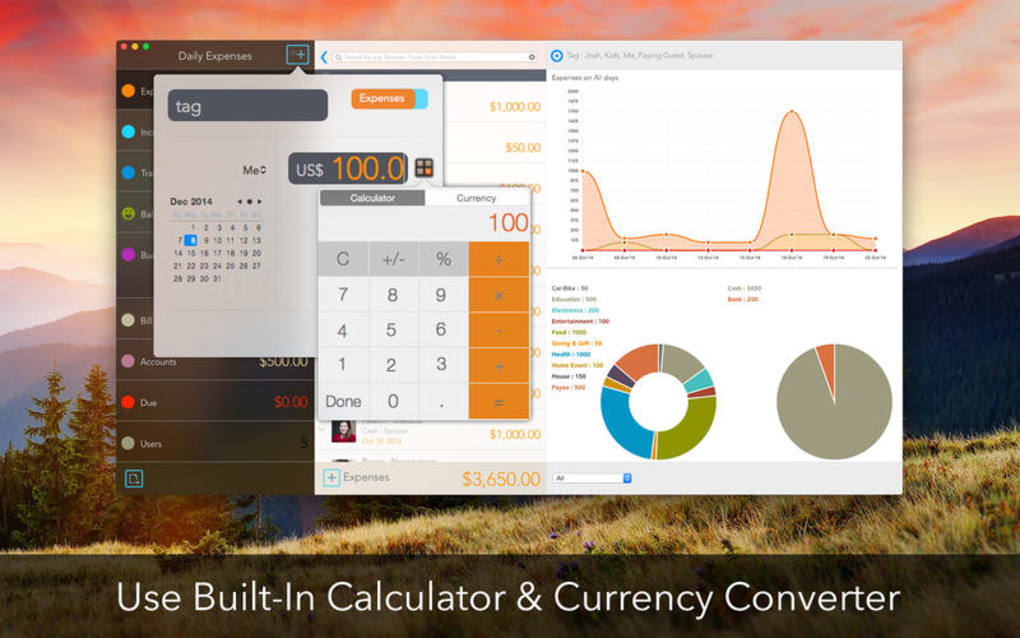
- Visual dashboards that display spending trends, cash flow, and savings goals.
- Multi‑currency support, allowing you to track expenses in different currencies and convert them at current exchange rates.
- Secure data storage with optional password protection and encrypted backups.
- Export functionality for CSV, Excel, and PDF to facilitate sharing with accountants or filing tax documents.
- Recurring transaction scheduler for subscriptions, utilities, and regular income streams.
- Integrated search and filter tools that let you locate specific transactions in seconds.
- Customizable reports, including monthly summaries, category breakdowns, and year‑to‑date overviews.
- Seamless integration with macOS notifications to remind you of upcoming bills or budget limits.
Operating System Support
Daily Expenses is built specifically for the macOS ecosystem. It supports macOS X (10.6) and newer releases, ensuring compatibility with both legacy machines and the latest Apple hardware. The application runs natively on Intel‑based Macs as well as Apple Silicon (M1, M2) thanks to Apple’s Rosetta 2 translation layer, which guarantees smooth performance regardless of the processor architecture. Users can also install the program on virtualized macOS environments, making it a flexible choice for developers and IT professionals who need a finance tool within sandboxed setups. Because the software does not rely on external web services for core functionality, it continues to work offline, which is particularly valuable for users who travel frequently or work in low‑connectivity environments.
Installation, Everyday Use, and Pros & Cons
Step‑by‑Step Installation Guide
Installing Daily Expenses is a straightforward process that can be completed in under five minutes:
- Visit the official download page or a trusted Mac software catalogue.
- Click the Download button to retrieve the
.dmginstaller. - Open the downloaded file; a window will appear showing the Daily Expenses app icon.
- Drag the icon into your Applications folder to copy the program.
- Launch the app from the Applications folder or via Spotlight. The first launch may prompt you to confirm that you trust the developer—click Open to continue.
- Enter your license key (if applicable) and follow the on‑screen wizard to set your default currency, preferred date format, and initial budget categories.
The installer occupies less than 50 MB of disk space, and the application itself consumes minimal RAM, making it suitable for older MacBooks with limited resources. Once installed, Daily Expenses checks for updates automatically once a week, ensuring you receive security patches and new features without manual intervention.
How to Use Daily Expenses Effectively
After the initial setup, you’ll land on the main dashboard, where you can add a new transaction by clicking the “+” button. Fill in the amount, select a category (e.g., Food, Transport, Utilities), choose the date, and optionally add a note or receipt image. The app instantly updates the visual graphs, giving you real‑time insight into where your money is going.
For recurring bills, use the “Schedule” tab to automate entry, reducing manual effort. The built‑in search bar lets you locate past entries quickly, while the “Reports” section offers downloadable PDFs for tax season or financial meetings. If you need to protect sensitive data, enable the password lock under Preferences → Security.
All backups can be exported to an encrypted zip file and stored on an external drive or cloud service of your choice.
Pros and Cons
- Pros
- Intuitive macOS‑native interface that feels familiar to Apple users.
- One‑time purchase – no hidden subscription fees.
- Robust reporting and export options for accountants and auditors.
- Offline capability ensures data is always accessible.
- Lightweight installation with low system impact.
- Secure password protection and encrypted backup support.
- Cons
- No native Windows or Android/iOS version, limiting cross‑device use.
- Interface has not been refreshed since 2017, which may feel dated to some users.
- Lacks built‑in bank synchronization; all entries must be manual.
- Limited community support due to a small user base.
Frequently Asked Questions & Final Thoughts
Is Daily Expenses compatible with Apple Silicon Macs?
Yes. The application runs natively on Intel‑based Macs and also works on Apple Silicon (M1, M2) through Rosetta 2, providing smooth performance on the latest hardware.
Can I import data from Excel or CSV files?
Absolutely. Daily Expenses includes an import wizard that accepts CSV files, allowing you to bring in historical transaction data from Excel or other finance tools.
Does the app provide any automatic bank feed integration?
No. The current version focuses on manual entry and scheduled recurring transactions. Users who need automatic bank feeds will need to continue using separate services and import the data periodically.
How secure is my financial data within Daily Expenses?
Data is stored locally on your Mac and can be protected with a password. Backups can be encrypted, ensuring that even if the backup file is misplaced, the contents remain unreadable without the key.
Is there a free trial or demo version available?
The software is sold as a full version with a one‑time purchase; however, the developer occasionally offers a 14‑day money‑back guarantee, allowing you to test the app risk‑free.
Conclusion – Should You Download Daily Expenses?
If you own a Mac and need a reliable, offline‑first finance manager that respects your privacy, Daily Expenses is a compelling option. Its feature set covers everything from basic expense logging to detailed reporting, all wrapped in a lightweight, native macOS package. While the lack of cloud sync and a dated UI may deter power users seeking the latest design trends, the program’s one‑time purchase price and strong security controls make it an excellent value for anyone who prefers to keep financial data on their own hardware. Ready to take control of your budgeting? USD 29.99 – Download Daily Expenses now and start tracking every dollar with confidence.







